Flowise AI pre-configured on Ubuntu with full NVIDIA GPU driver support and Docker integration by Miri Infotech Inc.

About

Flowise AI on Ubuntu with NVIDIA GPU acceleration, containerized using Docker and pre-configured by Miri Infotech Inc. This AMI delivers a ready-to-use AI orchestration platform designed for developers, data scientists, and enterprises. With GPU optimization and Docker integration, you can quickly build, deploy, and scale AI workflows, large language models (LLMs), and retrieval-augmented generation (RAG) pipelines without complex setup.
Flowise AI is a powerful open-source tool designed to make building LLM-based applications accessible and intuitive. Built on top of LangChain, Flowise provides a visual interface where users can create, customize, and deploy AI workflows using a drag-and-drop node system. This no-code/low-code platform allows developers, data scientists, and non-technical users to connect components like language models, vector databases, APIs, and more—visually and efficiently.
Flowise enables rapid prototyping and deployment of complex AI applications, such as chatbots, retrieval-augmented generation (RAG) systems, data agents, and more. It supports multiple LLM providers (OpenAI, Cohere, Hugging Face, etc.), vector stores (Pinecone, Chroma, Weaviate, etc.), and integrates easily into existing infrastructure with REST APIs and embedding capabilities.
Key Highlights :
100% open-source under the MIT License; customizable and extensible.
Drag-and-drop interface to design LLM workflows easily.
Built on LangChain for robust, modular, and scalable LLM pipelines.
Native support for Chroma, Pinecone, Weaviate, FAISS, etc.
Works with OpenAI, Cohere, Hugging Face, Azure, and more.
Integrate with other tools and systems via API endpoints.
- Type virtual machines in the search.
- Under Services, select Virtual machines.
- In the Virtual machines page, select Add. The Create a virtual machine page opens.
- In the Basics tab, under Project details, make sure the correct subscription is selected and then choose to Create new resource group. Type myResourceGroup for the name.*.
- Under Instance details, type myVM for the Virtual machine name, choose East US for your Region, and choose Ubuntu 18.04 LTS for your Image. Leave the other defaults.
- Under Administrator account, select SSH public key, type your user name, then paste in your public key. Remove any leading or trailing white space in your public key.
- Under Inbound port rules > Public inbound ports, choose Allow selected ports and then select SSH (22) and HTTP (80) from the drop-down.
- Leave the remaining defaults and then select the Review + create button at the bottom of the page.
- On the Create a virtual machine page, you can see the details about the VM you are about to create. When you are ready, select Create.
It will take a few minutes for your VM to be deployed. When the deployment is finished, move on to the next section.
Connect to virtual machine
Create an SSH connection with the VM.
- Select the Connect button on the overview page for your VM.
- In the Connect to virtual machine page, keep the default options to connect by IP address over port 22. In Login using VM local account a connection command is shown. Select the button to copy the command. The following example shows what the SSH connection command looks like:
ssh azureuser@<ip>
- Using the same bash shell you used to create your SSH key pair (you can reopen the Cloud Shell by selecting >_ again or going to https://shell.azure.com/bash), paste the SSH connection command into the shell to create an SSH session.
Usage/ Deployment Instructions
Connect to VM- Port- 22.
Getting Started with Flowise AI on Ubuntu.
# You need to run commands to start with the setup in terminal.
cd ~/flowise-docker
docker compose up -d # start again in background
docker compose down # stop & remove container
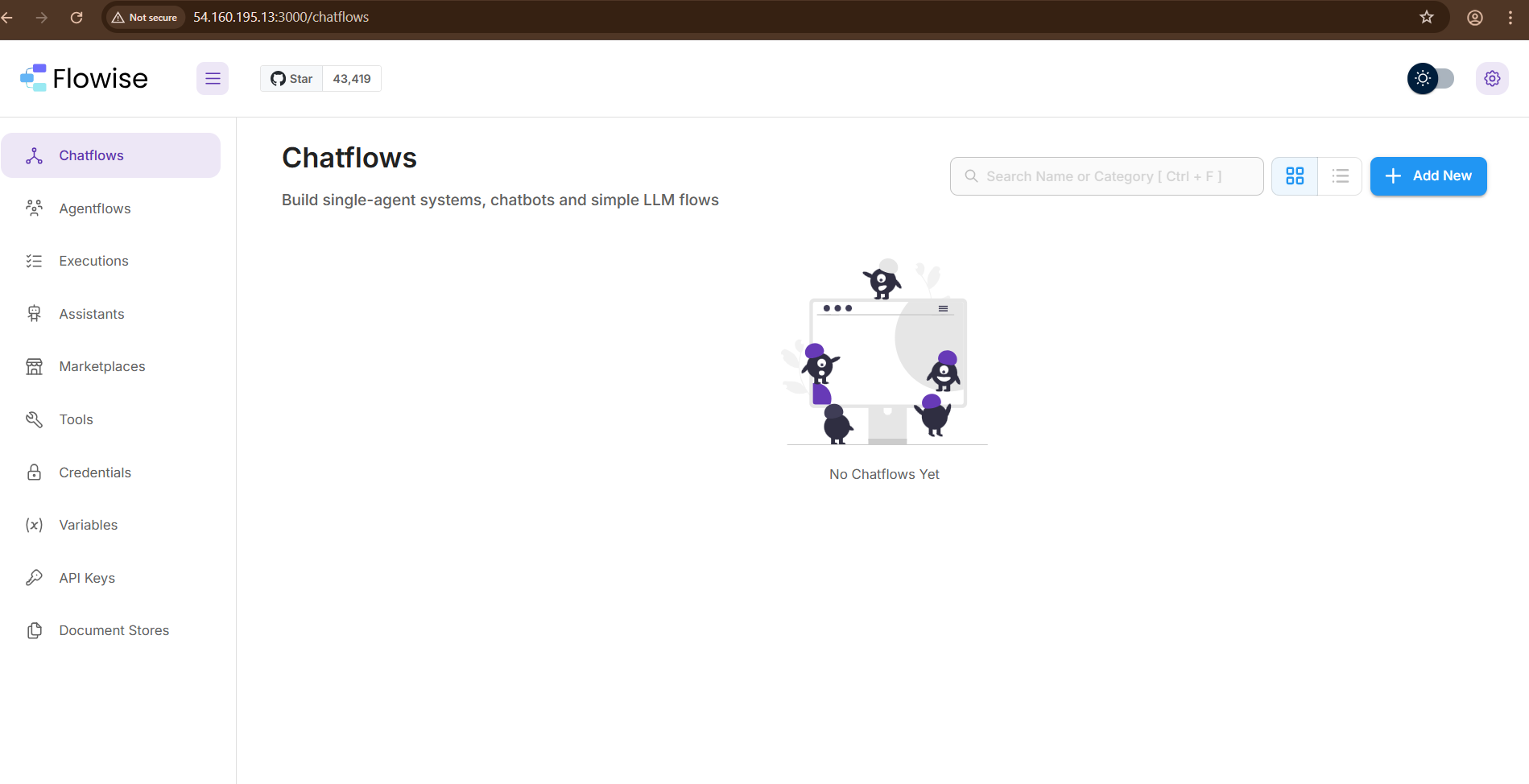
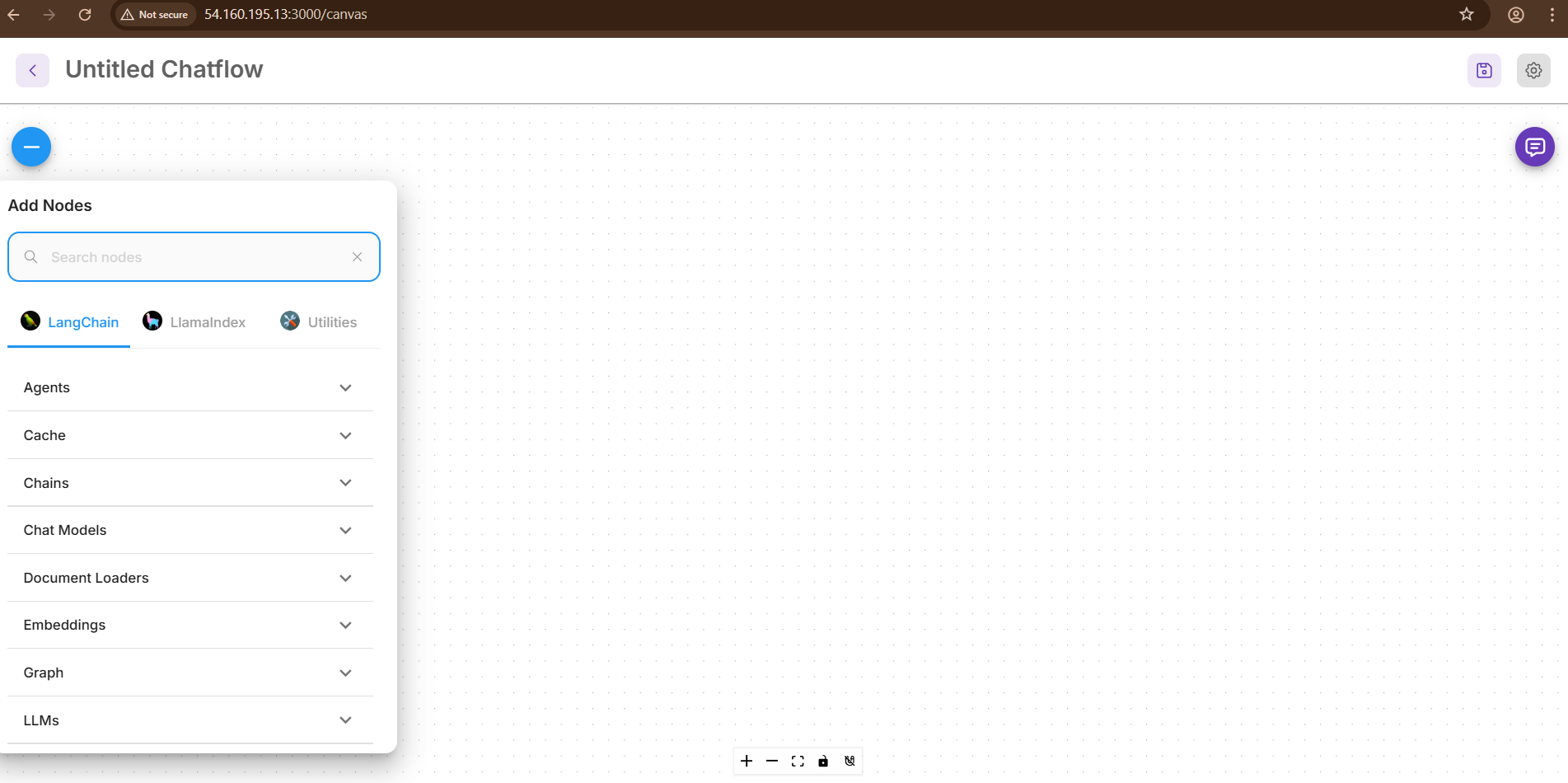
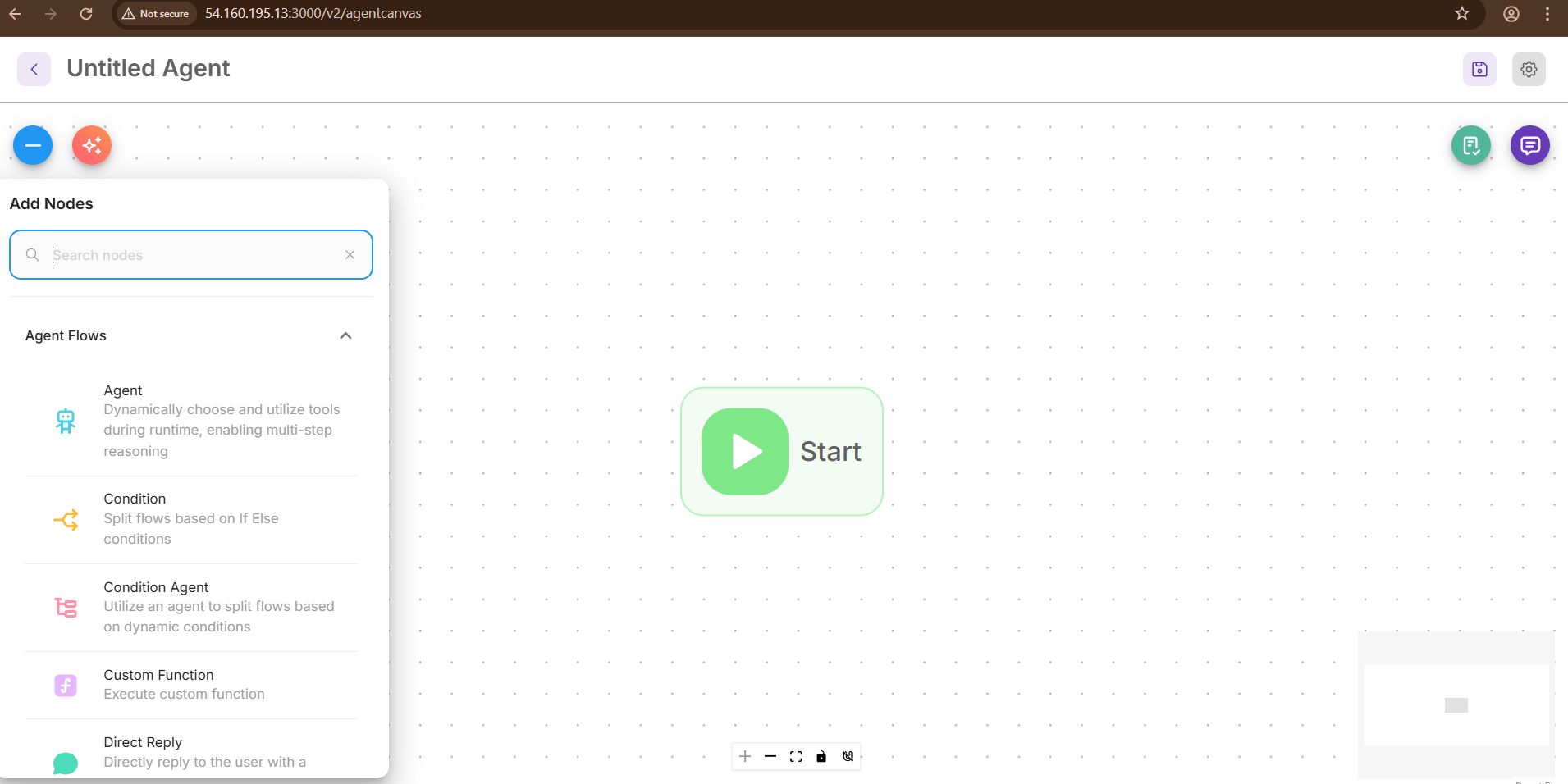
Step 2: Use your web browser to access the application at:
http://<instance-ip-address>:3000
- (510) 298-5936
Submit Your Request
Highlights
- Pre-configured Flowise AI on Ubuntu
- NVIDIA GPU driver support for accelerated AI workloads
- Dockerized deployment for portability and scalability
- Ready-to-use for LLMs, RAG pipelines, and AI automation
Application Installed
