Dify AI Build, Deploy & Manage GenAI Apps pre configured by Niles

About

This is a repackaged open source Product. Dify AI is a powerful open-source AI application development platform designed to simplify the creation of LLM-powered products. It enables developers, startups, and enterprises to build AI applications such as chatbots, agents, and workflows using an intuitive interface combined with robust backend capabilities.
With support for multiple large language models, prompt engineering, dataset management, and API-first deployment, Dify AI bridges the gap between experimentation and production. It allows teams to iterate faster, scale reliably, and maintain full control over their AI systems while reducing development time and operational complexity.
Dify AI is ideal for organizations looking to integrate AI into real-world applications with flexibility, transparency, and scalability.
Highlights
-
Open-source LLM application development platform
-
Build chatbots, AI agents, and workflows easily
-
Supports multiple large language models
-
Visual prompt and workflow management
-
API-first design for easy integration
-
Dataset and knowledge base management
-
Scalable and production-ready
-
Designed for developers and businesses
- Type virtual machines in the search.
- Under Services, select Virtual machines.
- In the Virtual machines page, select Add. The Create a virtual machine page opens.
- In the Basics tab, under Project details, make sure the correct subscription is selected and then choose to Create new resource group. Type myResourceGroup for the name.*.
- Under Instance details, type myVM for the Virtual machine name, choose East US for your Region, and choose Ubuntu 18.04 LTS for your Image. Leave the other defaults.
- Under Administrator account, select SSH public key, type your user name, then paste in your public key. Remove any leading or trailing white space in your public key.
- Under Inbound port rules > Public inbound ports, choose Allow selected ports and then select SSH (22) and HTTP (80) from the drop-down.
- Leave the remaining defaults and then select the Review + create button at the bottom of the page.
- On the Create a virtual machine page, you can see the details about the VM you are about to create. When you are ready, select Create.
It will take a few minutes for your VM to be deployed. When the deployment is finished, move on to the next section.
Connect to virtual machine
Create an SSH connection with the VM.
- Select the Connect button on the overview page for your VM.
- In the Connect to virtual machine page, keep the default options to connect by IP address over port 22. In Login using VM local account a connection command is shown. Select the button to copy the command. The following example shows what the SSH connection command looks like:
ssh azureuser@<ip>
- Using the same bash shell you used to create your SSH key pair (you can reopen the Cloud Shell by selecting >_ again or going to https://shell.azure.com/bash), paste the SSH connection command into the shell to create an SSH session.
Usage/ Deployment Instructions
Connect to VM- Port- 22.
start Dify services
cd /home/niles/dify/docker
docker compose up -d
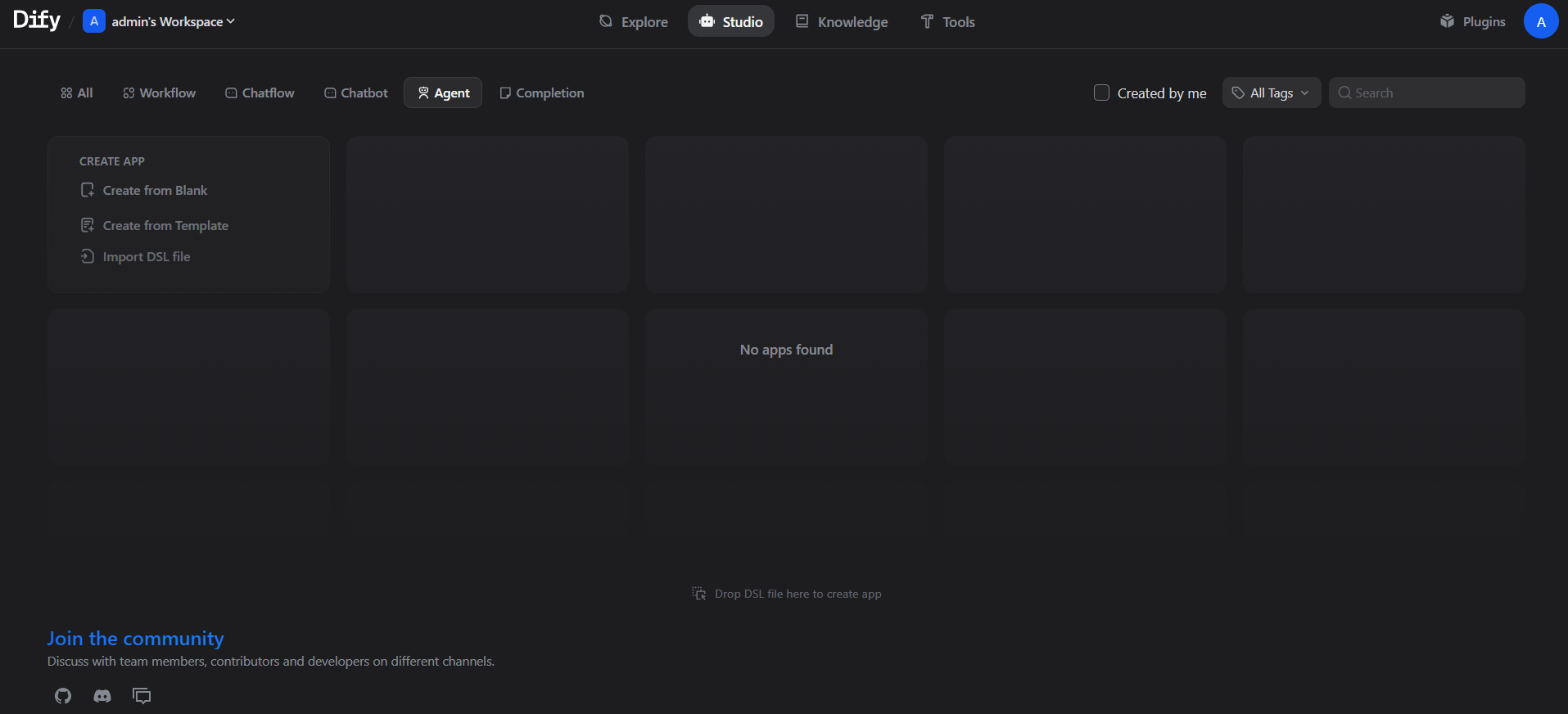
Dify – a visual, low-code AI app / workflow / agent builder.
First Login – Dify (AI App Studio)
Initial Setup
-
Open the EC2 Console and note the public IP address of your instance.
-
In a web browser, visit:
-
The Dify setup screen will appear.
-
Enter an admin email address
-
Create an admin password
-
Click Create or Continue to finish setup
-
-
Once setup is complete, go to:
-
Sign in using the admin credentials you just created.
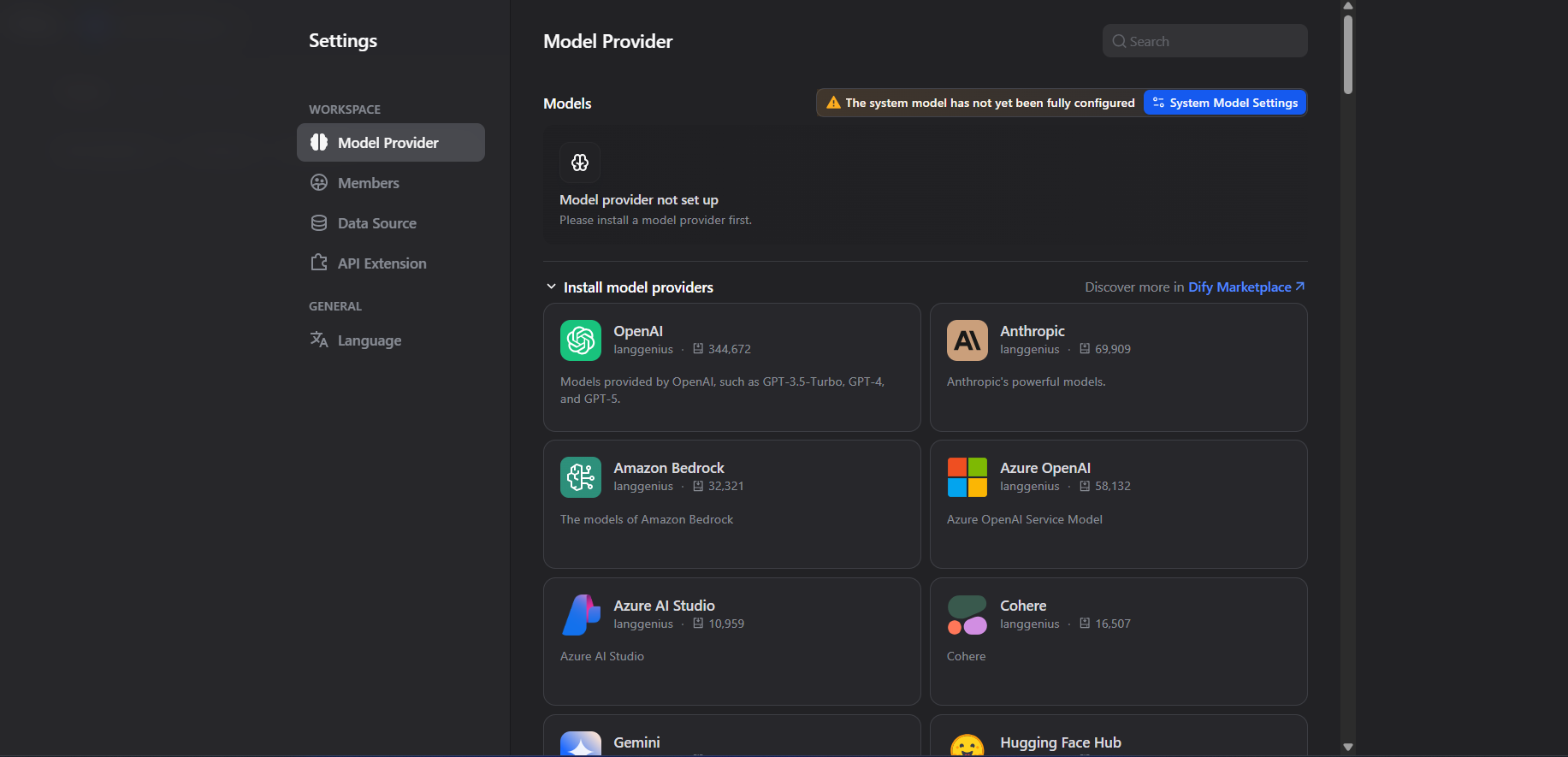
Configure AI Model Providers (API Keys)
After logging into Dify:
-
Open the Dify dashboard at:
-
Navigate to Settings → Model Providers / LLM Providers
(menu names may vary slightly depending on the version). -
Add API credentials for the providers you plan to use, such as:
-
OpenAI – enter your OpenAI API key
-
Anthropic – add your Claude API key
-
AWS Bedrock – configure region and access credentials
-
Any other supported model provider
-
-
Save your configuration.
What You Can Do Next
With Dify configured, you can now:
-
Build and deploy AI chatbots
-
Create agents and automated workflows
-
Set up RAG / knowledge base applications
-
Test and refine everything directly from the Dify interface
View running containers
Restart Dify services
Stop all Dify services (maintenance mode)
- (510) 298-5936
Submit Your Request
Highlights
- Open-source LLM application development platform
- Build chatbots, AI agents, and workflows easily
- Supports multiple large language models
- Scalable and production-ready
Application Installed
