Streamlining Kubernetes Deployments with Argo CD pre-configured by Niles

About

Argo CD on Minikube with Ubuntu 24.04 provides a complete local GitOps lab environment.
Minikube creates a single-node Kubernetes cluster that’s easy to manage on a local machine.
Argo CD, an open-source continuous delivery tool for Kubernetes, automates the synchronization between your Git repositories and cluster states — ensuring that your deployments match the declared configuration in Git.
The setup process involves:
Installing kubectl and Minikube on Ubuntu 24.04.
Starting Minikube with sufficient resources (e.g., minikube start –cpus=4 –memory=8g).
Installing Argo CD into the argocd namespace using the official manifests.
Exposing the Argo CD API server via port-forward or NodePort to access the Argo CD Web UI.
Once deployed, you can connect Argo CD to a Git repository, define application manifests, and automatically sync updates — demonstrating GitOps automation from code commit to cluster deployment.
This environment is perfect for developers, DevOps engineers, or students who want to practice Kubernetes continuous delivery workflows safely on a local Ubuntu system.
- Type virtual machines in the search.
- Under Services, select Virtual machines.
- In the Virtual machines page, select Add. The Create a virtual machine page opens.
- In the Basics tab, under Project details, make sure the correct subscription is selected and then choose to Create new resource group. Type myResourceGroup for the name.*.
- Under Instance details, type myVM for the Virtual machine name, choose East US for your Region, and choose Ubuntu 18.04 LTS for your Image. Leave the other defaults.
- Under Administrator account, select SSH public key, type your user name, then paste in your public key. Remove any leading or trailing white space in your public key.
- Under Inbound port rules > Public inbound ports, choose Allow selected ports and then select SSH (22) and HTTP (80) from the drop-down.
- Leave the remaining defaults and then select the Review + create button at the bottom of the page.
- On the Create a virtual machine page, you can see the details about the VM you are about to create. When you are ready, select Create.
It will take a few minutes for your VM to be deployed. When the deployment is finished, move on to the next section.
Connect to virtual machine
Create an SSH connection with the VM.
- Select the Connect button on the overview page for your VM.
- In the Connect to virtual machine page, keep the default options to connect by IP address over port 22. In Login using VM local account a connection command is shown. Select the button to copy the command. The following example shows what the SSH connection command looks like:
ssh azureuser@<ip>
- Using the same bash shell you used to create your SSH key pair (you can reopen the Cloud Shell by selecting >_ again or going to https://shell.azure.com/bash), paste the SSH connection command into the shell to create an SSH session.
Usage/Deployment Instructions
Step 1: SSH into your instance with username ubuntu and key pair to start the application
Username: ubuntu
ssh -i ssh_key.pem ubuntu@instance-IP
su – ubuntu
minikube start –vm-driver docker
$ kubectl port-forward svc/argocd-server -n argocd –address 0.0.0.0 8080:443
The ArgoCD UI will be available at http://localhost/IP:8080.
Get the initial password for the admin user to log in
kubectl -n argocd get secret argocd-initial-admin-secret -o jsonpath=”{.data.password}” | base64 -d
if taking long to sart minikube then follow below steps:-……
minikube delete
then
minikube start –vm-driver docker
kubectl create namespace argocd
kubectl apply -n argocd -f https://raw.githubusercontent.com/argoproj/argo-cd/stable/manifests/install.yaml
kubectl port-forward svc/argocd-server -n argocd –address 0.0.0.0 8080:443
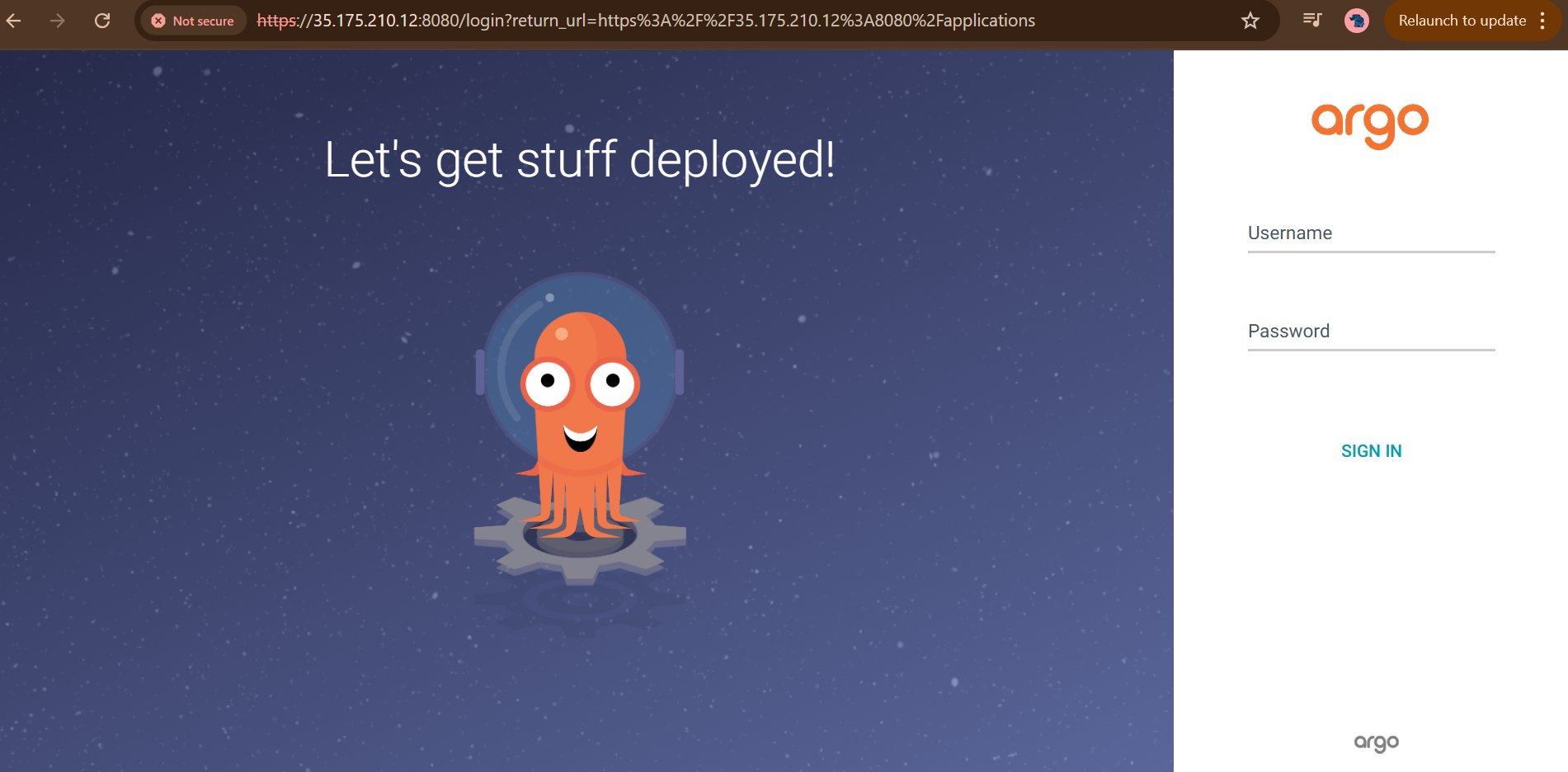
Step 2: Use your web browser to access the application at:
http://<instance-ip-address>:8080
After this, access Argo CD at http://<host-ip>:8080

- (510) 298-5936
Submit Your Request
Highlights
- GitOps-based continuous delivery for Kubernetes
- Deploy and manage Kubernetes applications declaratively
- Real-time sync and health monitoring of applications
- Easy rollback and application history tracking
- Intuitive web UI and CLI for managing deployments
Application Installed
